Step 1 Go to Tools -> Document -> Document Design ( Fig 1 ).
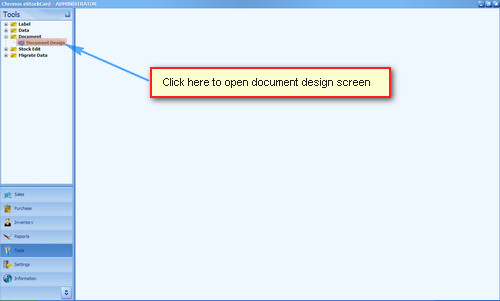
( Fig 1 )
Step 2 Please highlight the Delivery Order ( as an example) and then move it to the Available Document column (move the Delivery Order from right to left).( Fig 2 )

( Fig 2 )
Step 3 Highlight the Delivery Order at the Available Document column and then click on New button ( Fig 3 ).
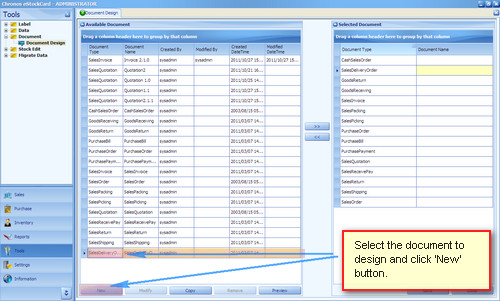
( Fig 3 )
Step 4 The Design Report screen for the Delivery Order will appear (Fig 4 ).
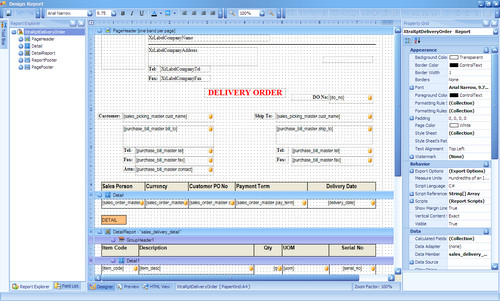
( Fig 4 )
Step 5 Then design the Delivery Order as per your required format.
Step 6 Once finish, just click on the Save button (top left) and then enter the Delivery Order new document name ( Fig 5 ).
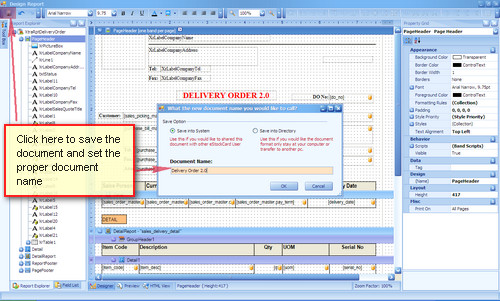
( Fig 5 )
Step 7 This new Delivery Order will appear at the Available Document column.
Step 8 To use this Delivery Order, just move it to the Selected Document column and Save it( Fig 6 ).

( Fig 6 )
For the rest of the documents in the eStockCard Warehouse System, just follow the step from 1 – 8.
Related posts:
- Can I print out documents from the IN & OUT screen for the eStockCard v3 Inventory System?
- eStockCard Inventory System on Design a Print Out Label
- Does eStockCard Warehouse System come with a barcode labels feature?
- I’m using eStockCard warehouse system Network Version. After changing my computer name, why I unable to connect to eStockCard server again?
- How to search for Item at Operation screen on the eStockCard Warehouse System?