Step 1 Login to the Chronos eStockCard warehouse software and go to Information > Software Activation. (Note : Please make sure no internet connection from the pc that you want to activate eStockCard license during activation process)
Step 2 Click on Activate (Fig 1 ).
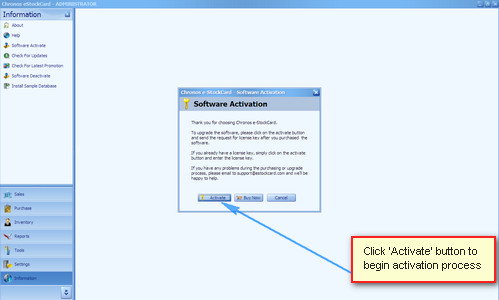
( Fig 1 )
Step 3 Click Next on the welcome screen .
Step 4 The Identification Code is automatically available on the column. Please enter your purchase serial no and follow by ‘Next’ button (Fig 2 ).
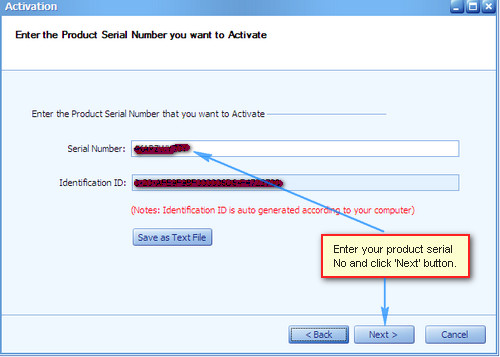
( Fig 2 )
Step 5 Click ‘Yes’ when system prompt you to activate license vie offline method.
Step 6 Log on to our website at www.estockcard.com (via a PC which can access internet) and login to the Client Center at the eStockCard inventory software website with your Email Address and Password.
Step 7 Just click on the Activate (if you have made the purchase ) and enter the Identification Code (from Step 4).
Step 8 It will generate the Activation Code for the eStockCard v3 which is available in your PC.
Step 9 If you already generate activation code for the eStockCard PC that you want to activate, please skip the step 7 and 8. Just copy the activation code from the client centre. Please make sure you copy the right code for your respective pc. ( Fig 3 )
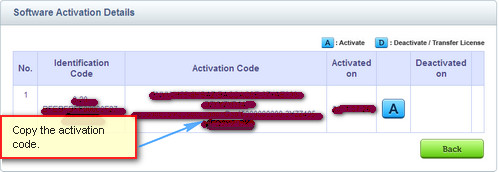
( Fig 3 )
Step 10 Paste the Activation code from step 8 or step 9 into Activation code column (Fig 4 ) then follow by ‘Next’ Button.
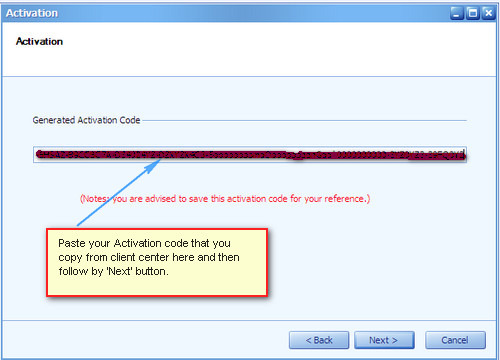
( Fig 4 )
Step 11 Click Finish button to complete the process ( Fig 5 )
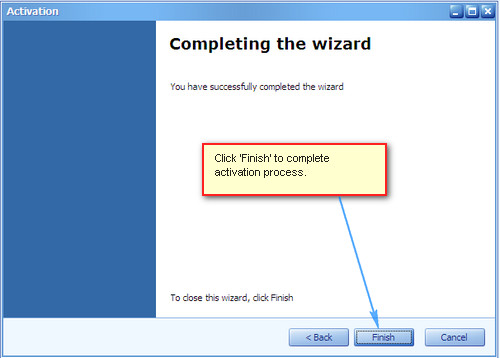
( Fig 5 )
Now the eStockCard warehouse system had been activated to a full license version
Related posts:
- I’m quite satisfied with my current accounting software, how Chronos eStockCard can further benefit me?
- How many items can be supported by Chronos eStockCard Inventory Software?
- Does eStockCard Warehouse System come with a barcode labels feature?
- Currently I’m using the Free Edition of the eStockCard Inventory Software, should I re-enter my data after upgrading to the Standard Edition?