How to correct wrongly entered info in eStockCard Inventory Software?

April 27th, 2011, Filed in FAQs

If you have entered wrong info such as lot number at the column, you can make use of the Stock Editing screen to correct the unwanted info.

Just go to Tools -> Stock Edit -> Editing. Search for the item which info have been wrongly entered and then replace with correct info at the respective column.

Click Save follow by Confirm button.

Please note that only several columns which are highlighted in YELLOW colour can be edited.
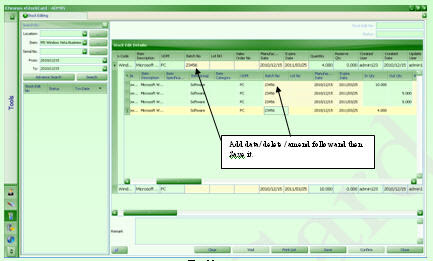
Stock Edit


Related posts:

  1. After installed Free eStockCard Inventory Software, how do I switch between Premier and Warehouse Edition?
  2. How many editions are available for Chronos eStockCard Inventory Software?
  3. How many items can be supported by Chronos eStockCard Inventory Software?
  4. User ID and password for sample database in eStockCard Inventory Software
  5. Can I networkly connected eStockCard Inventory Software to share the same database via internet?