Activation is needed for Purchased edition.
For Free edition, NO activation is required but it comes with certain limitations. For details, please visit http://www.estockcard.com/inventory-software-comparison.html
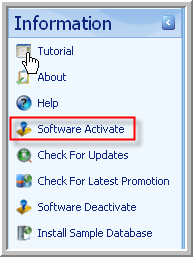
- After complete the installation of eStockCard, you can proceed with the software activation. Login to Chronos eStockCard v3 and go to Information > Software Activate (only Client PC requires activation and Server PC no need to activate).
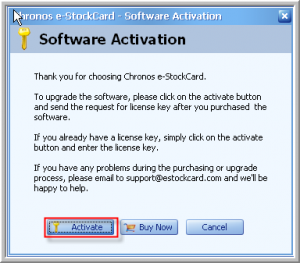
- Click the Activate button to continue.
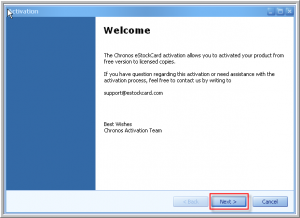
- Click Next to continue.
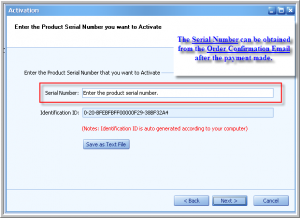
- In this screen, you can see the Serial Number field that needs to be filled up and the Identification ID is auto generated by our system. Please enter the Serial Number and it can be obtained from the Order Confirmation Email that we sent to you after payment. Then click Next to proceed.
- Enter the Email and Password that you used to purchase the software. If you can’t remember your Password, you can retrieve it at this page: http://www.estockcard.com/client_center_pwd_recover.asp. After you have filled up the required fields, click the Next button to continue.

- At this screen you can see the system generated an Activation Code for you. You can save the code for your own reference. Click Next to continue to the last screen.

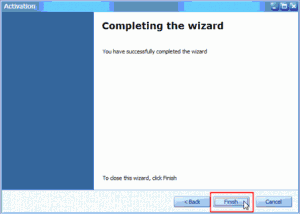
- After activation complete, system will prompt this message. Click Finish to complete the activation process and you can start using your full version of Chronos eStockCard v3 inventory software.
Related posts:
- Steps to activate Chronos eStockCard v3 (Warehouse, Premier) — Offline Method
- Step to transfer the eStockCard inventory software license to another computer
- Unable to activate the Chronos eStockCard inventory system
- What happen if I have forgotten my User ID and Password (for Testing Database only)in the eStockCard Inventory Software?
- Currently I’m using the Free Edition of the eStockCard Inventory Software, should I re-enter my data after upgrading to the Standard Edition?